Your First Steps in Karuta
Every great collection starts with a single card.
Ready to get started? This guide will walk you through dropping and grabbing your first cards, viewing your collection, managing your wishlist, and getting familiar with some of Karuta's most useful commands.
01 Getting Started With Karuta
Before collecting cards, you'll need to register with Karuta.
▸ Verifying your account:
k!verifykverifyFollow Karuta's instructions to complete verification.
Once verified, you're ready to begin collecting!
02 Dropping Your First Cards
Dropping generates a selection of random cards that players can attempt to grab.
▸ How to drop cards:
k!dropkd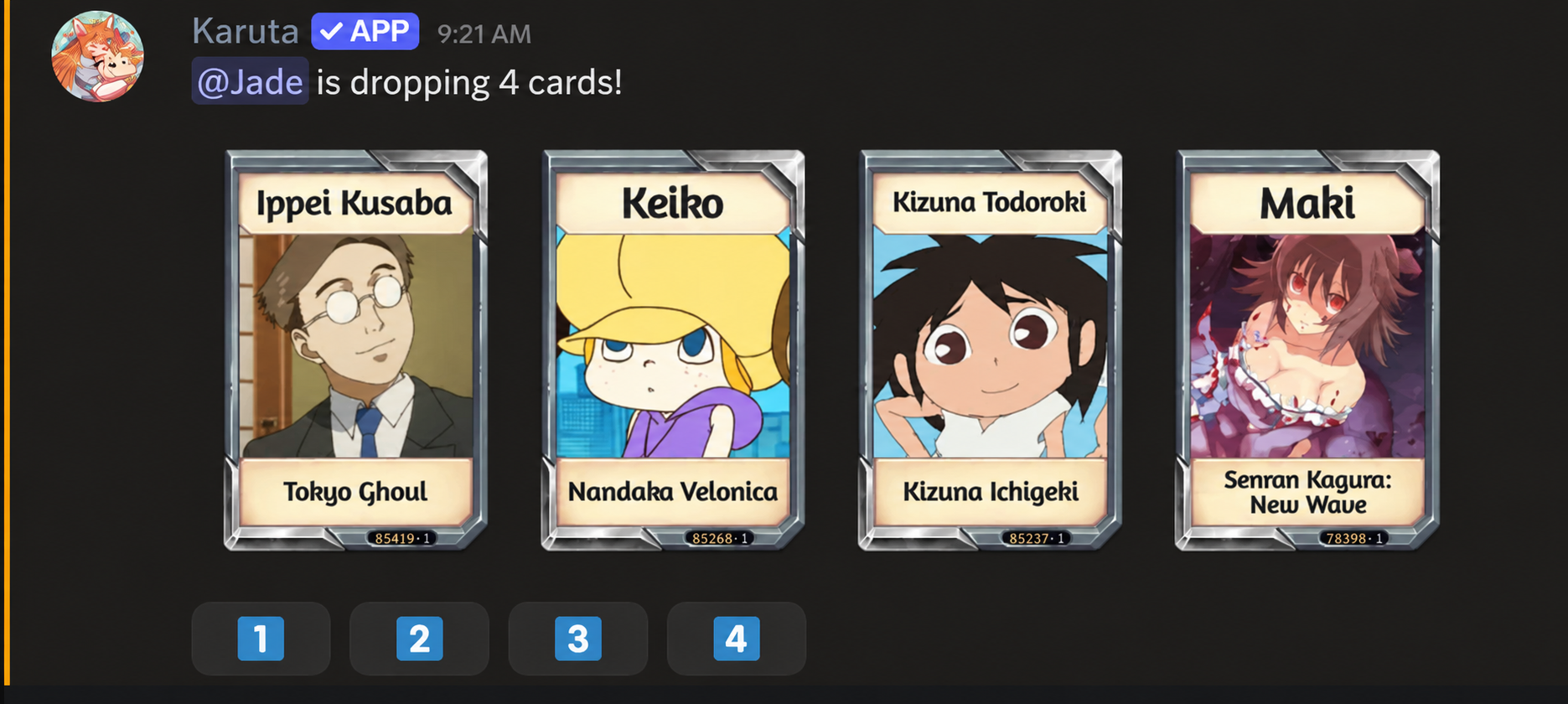
Regular drops normally contain 3 cards. The example above shows 4 because an active blessing grants an additional card per drop.
- Dropping does not automatically give you a card.
If the drop command isn't working, check whether your server has a dedicated Karuta drop channel. Some servers restrict card drops to specific channels.
03 Grabbing Cards
When a card drop appears, you can attempt to grab one of the available cards.
▸ How to grab a card:
- Wait for a card drop to appear.
- Look at the available cards.
- Press the button corresponding to the card you want.
- If successful, the card is added to your collection.

▸ Understanding grab priority:
The player who dropped that set of cards will always have grab priority for up to 4 seconds. However, other players can still attempt to grab them.
Important: Grabbing uses your grab cooldown, even when the card comes from someone else's drop.
💡 Note: Servers may have their own anti-snipe rules. Check your server’s rules before grabbing.
Learn more in ☾ Cooldowns, Server Drops & Reminders.
04 Understanding Cooldowns
Karuta has a 30-minute drop cooldown and a 15-minute grab cooldown, so you’ll need to wait before dropping or grabbing again.
Check your remaining cooldowns with kcd, and learn about reminders in ☾ Cooldowns, Server Drops & Reminders.
05 Viewing Your Collection
Once you've grabbed your first card, you can find it in your collection.
▸ Opening your collection:
k!collectionkcYour collection displays the cards you own, along with their unique card codes.
▸ Viewing an individual card:
k!view <card code>kv <card code>Example: kv abc123
Replace abc123 with the code of the card you want to inspect.
▧ See a real card-view example
View the Maomao card-view screenshot to see what Karuta displays when you view a card.
We'll explore sorting, filtering, and organizing cards in ♤ Cards & Collections.
06 Managing Your Wishlist
Your wishlist tracks characters you want, while Wishwatch helps you catch them in drops.
| Action | Full Command | Shortcut |
|---|---|---|
| Add a character | k!wishadd <name> | kwa <name> |
| Remove a character | k!wishremove <name> | kwr <name> |
| View your wishlist | k!wishlist | kwl |
| Set Wishwatch channel | k!wishwatch | kww |
Use Wishwatch in the channel where you want to monitor drops.
Your Karuta wishlist can only be monitored in one channel at a time. If you use kww in a different channel, the previous channel will stop monitoring your wishlist, and notifications will move to the new channel.
Learn more about wishlists in ♤ Understanding Prints, Editions & Wishlist.
Need help? Use k!help to explore Karuta's available commands. You don't need to memorize everything right away!