Cooldowns, Server Drops & Reminders
Good things come to those who wait… but reminders certainly help!
Karuta uses cooldowns to control how often you can drop and grab cards. This guide explains how those timers work, the difference between personal and server drops, and how to set reminders so you never miss an opportunity to collect more cards.
01 Understanding Cooldowns
Cooldowns are waiting periods between certain actions.
▸ Default cooldowns:
| Action | Cooldown |
|---|---|
| Dropping cards | 30 minutes |
| Grabbing cards | 10 minutes |
These cooldowns apply to your Karuta account across all Discord servers. Switching servers will not reset them.
Certain items and effects can provide additional drops or grabs without waiting for your regular cooldown.
02 Checking Your Cooldowns
You can check your remaining timers whenever you want.
k!cooldownskcdThis displays how much time remains before you can perform your next drop or grab.
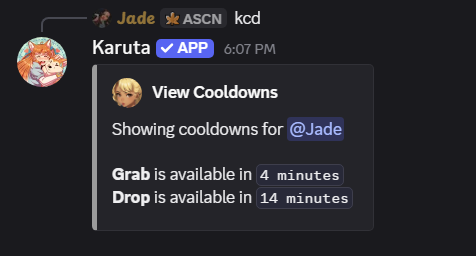
▸ Example:
If your drop cooldown shows 15 minutes remaining, you'll need to wait another 15 minutes before using your regular drop again.
03 Understanding Server Drops
Some Discord servers have server card drops that appear without anyone using k!drop.
These drops are generated by Karuta based on server activity.
▸ How server drops work:
- Cards appear in the server's designated automatic drop channel.
- Eligible players can attempt to grab them.
- Server drops do not use your personal drop cooldown.
- Successfully grabbing a card still uses your grab cooldown.
Server drops are separate from personal drops, so you can encounter them even while waiting for your next regular drop.
04 Setting Up Reminders
Karuta can send you direct messages when certain cooldowns or activities are ready again.
▸ Viewing your reminder settings:
k!reminderskrm▸ Checking Your Reminders
Use k!reminders (krm) to view your current cooldowns and reminder settings.
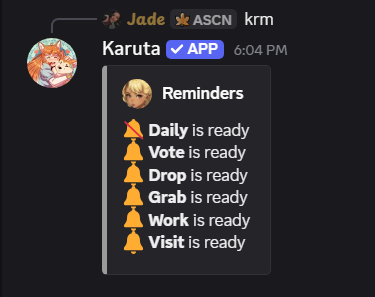
▸ Available reminders:
| Command | Reminder |
|---|---|
k!remind drop |
Dropping cards |
k!remind grab |
Grabbing cards |
k!remind vote |
Voting for tickets |
k!remind daily |
Daily gold rewards |
k!remind visit |
Visiting characters |
▸ How to enable reminders:
- Enter the reminder command for the activity you want.
- Karuta will toggle that reminder on or off.
- Use
k!remindersto check your reminder settings.
Example: k!remind drop
Make sure your Discord privacy settings allow direct messages from Karuta, or you may not receive notifications.
05 Extra Drops & Extra Grabs
Extra Drops and Extra Grabs are consumable items that let you perform additional actions while your regular cooldown is active.
▸ How they work:
- Extra Drop: Allows an additional card drop while your regular drop is on cooldown.
- Extra Grab: Allows an additional grab while your regular grab is on cooldown.
- These items are consumed when used.
- They do not permanently shorten your regular cooldowns.
We'll cover tickets and other currencies in ☾ Understanding Gold, Tickets & Gems.