Sketches & Card Artwork
Learn what card sketches are, how they work, and how they can customize your Karuta cards.
✦ 01・WHAT ARE SKETCHES?
Sketches allow players to personally draw and customize their card's artwork using Karuta's online sketch editor.
Unlike frames, dyes, and other cosmetics, sketches let you create your own designs directly on the card.
◈ 02・CREATING A SKETCH
To begin, open the sketch interface for your chosen card.
| Action | Full Command | Shortcut |
|---|---|---|
| Open Sketch | k!sketch <card code> |
ksk <card code> |
Example: ksk abc123
Karuta will send a message containing a button that links to the online sketch editor.
- Press the button to open the website.
- Draw or customize your card using the available tools.
- Complete your design before applying it.
Make sure your artwork follows Karuta's official sketch guidelines.
※ Tip: The sketch editor link is generated for the specific card you choose. Use ksk <card code> and open the button Karuta provides rather than relying on a universal sketching URL.
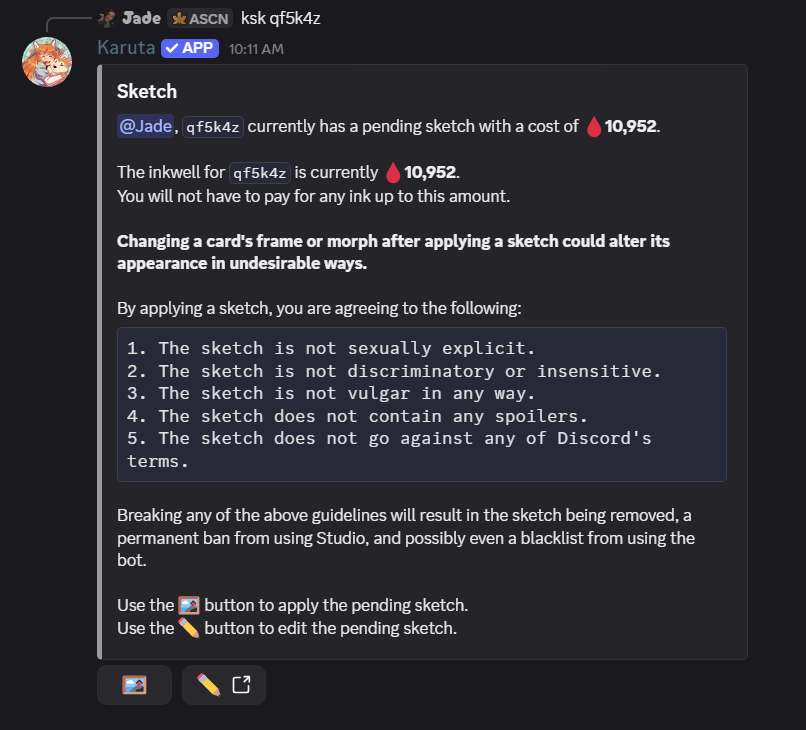
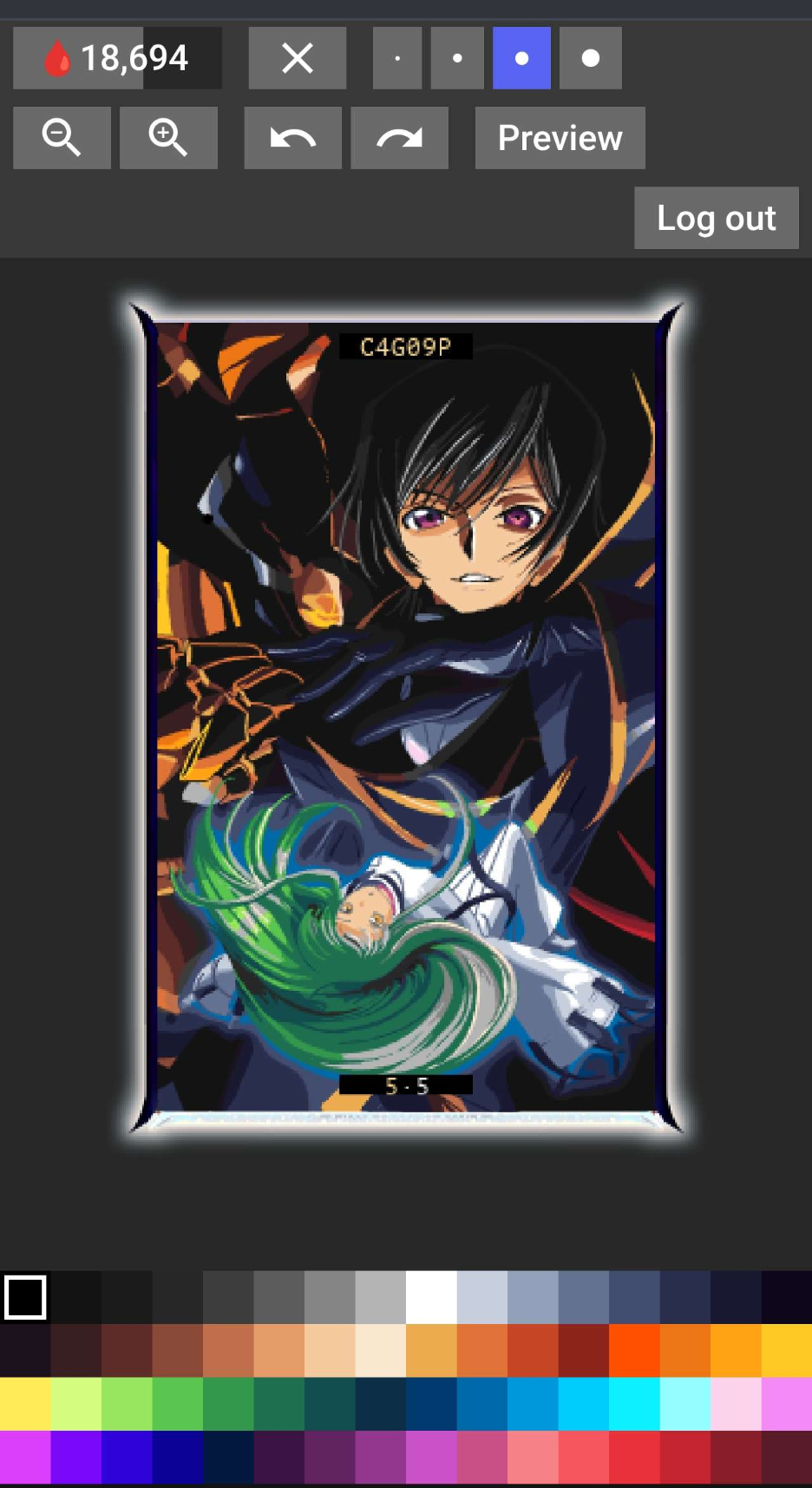
The ksk <card code> command opens a Discord confirmation for the pending sketch, including the ink cost, inkwell balance, content rules, and buttons to apply or edit it. Select ✏️ to open the editor. The editor has brush sizes, a colour palette, zoom, undo/redo, and preview controls.
Example: Sketch Confirmation Interface
Example: Karuta’s Sketch Editor
⌖ 03・INK & SKETCH COSTS
Ink is required to apply a completed sketch to your card.
- Ink is purchased from the Gem Shop.
- 1 Ink costs 1 Gem.
- The amount of ink required for your sketch is displayed in the top-left corner of the sketch editor.
Make sure you have enough ink before attempting to apply your artwork.
Purchasing Ink
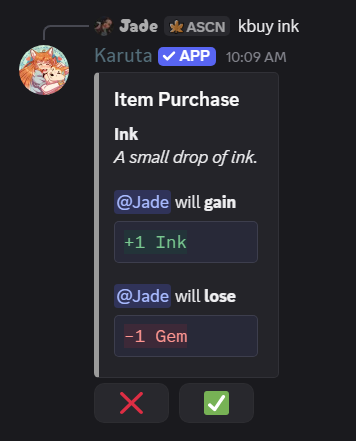
Purchase 1 Ink for 1 Gem using the commands below.
| Action | Full Command | Shortcut |
|---|---|---|
| Buy Ink | k!buy ink | kbuy ink |
Example: Purchasing Ink
◇ 04・APPLYING YOUR SKETCH
Once your design is complete and you have enough ink:
- Use
ksk <card code>to reopen the sketch interface. - Select the Apply Sketch button.
- Follow Karuta's prompts to apply your artwork.
| Action | Full Command | Shortcut |
|---|---|---|
| Open Sketch Interface | k!sketch <card code> |
ksk <card code> |
Sketches are not affected by Swap Orbs. Swapping cosmetics between cards will not transfer their sketches.
✧ 05・SKETCH COMMISSIONS
Don't feel like drawing your own sketch? The Karuta community has talented sketch artists who offer custom artwork commissions!
- Artists may accept payment in Gems, Tickets, or USD, depending on their preferences.
- Commissioning a sketch typically requires trading your card to the artist so they can work on it.
- Prices and payment arrangements vary between artists.
※ Warning: Only commission trusted, reputable artists. Agree on the price, payment method, and card return arrangements beforehand, as handing over your card carries a risk of scams.